Run the show from a Stream Deck.
The free Encorly Setlist plug-in for Elgato Stream Deck puts Play and Stop, your setlist and your Grid View pads on the keys, live, with no per-key setup. Install it from the app's Help menu, accept the ready-made profile for your model, and the keys come alive as soon as Setlist Organiser is open.
It is free and comes inside Setlist Organiser, so there is nothing extra to download or buy.
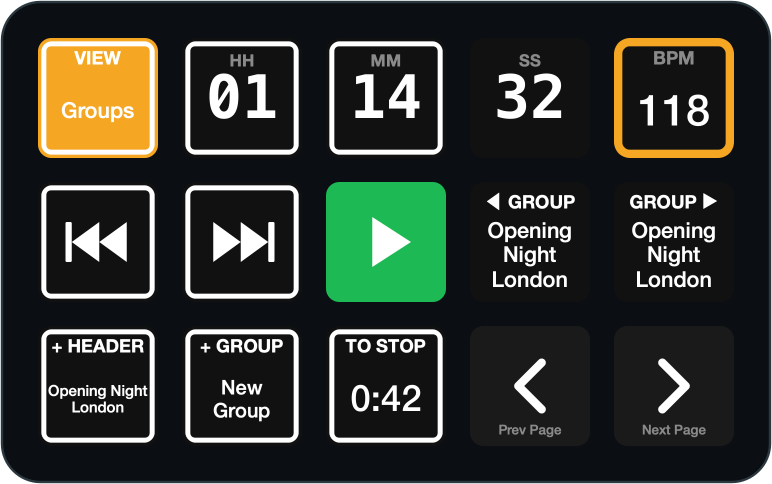
Keys that show the show.
Encorly keys draw what is happening now: the song that is on, the one coming up, the timecode, the time to the next stop. More than sixty keys and dials, in six families.

Transport
Play / Stop lights red while playing and green while stopped. Next and Previous Song show the song they will go to. Loop, Stop, and a Panic Stop you hold for just over half a second, so it can't be hit by accident.

What's on
Now Playing on its marker colour, Next Up, the timecode (or spread big across four keys), time remaining, a To Stop countdown that turns amber and then red, the song's tempo with the border flashing on the beat, a progress bar, the song title as a banner across a row of keys, and your cue notes.
Setlist and groups
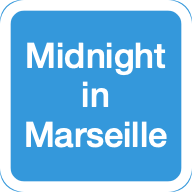
Setlist Song keys fill themselves with the current group's songs in order. Press one to jump to it, or set it to Go & play. The page follows the show. Step through groups and super groups, switch straight to a group, type a song number on a number pad, or turn on Cue then GO.
Grid View
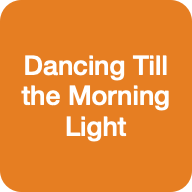
Grid Pad keys mirror Grid View's current bank in their pad colours, with bank keys beside them. Grid Layout shows and steps the layout, and Grid MIDI Learn turns MIDI Learn on and off.
The app and the session
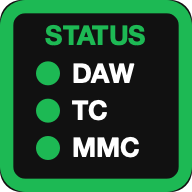
Switch the app's tab or show a window, import, push or rescan DAW markers, switch DAW, see DAW, timecode and MMC health as three lights, turn Play on Locate on and off, save, link the DAW session, undo and redo, add a marker at the current timecode, and see the network at a glance.
On stage
Deck Lock locks every Encorly key with a tap (hold to unlock). Night Mode dims the deck for a dark stage. A Show Clock, your own scrolling Message, the Encorly logo, Report a Problem and Help.
Keys that need a hold, such as Panic Stop, Undo and Redo, have a Hold to run setting and show an amber border while you hold. Loop This Song works with Bitwig only. With Pro Tools, Go & play needs Smart Link or MMC.
Stream Deck + dials.
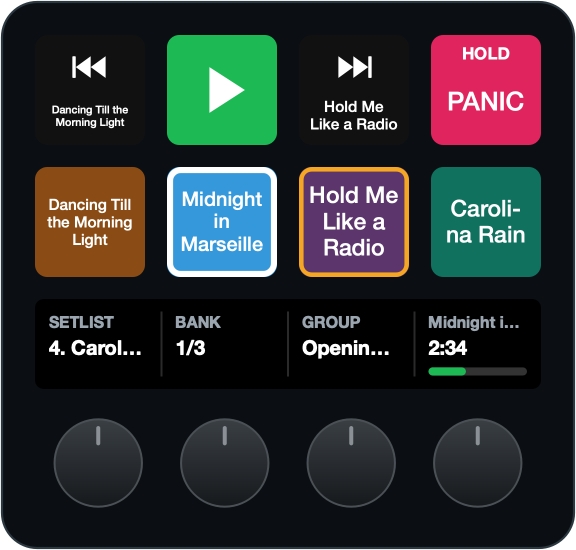
Four dials add hands-off browsing next to the keys. Turn the Setlist Dial to look through songs without moving the DAW, then press to go to the one shown. The Grid Bank Dial changes bank, the Group Dial browses groups, and the Song Progress Dial shows the song and its progress.
Nothing fires by accident. Pressing the Setlist Dial without turning it does nothing. The Song Progress Dial needs a short hold to play or stop. The touch strip does nothing unless you set it to Long touch: Play / Stop. A dial you leave turned away snaps back to following the show after about eight seconds.
Ready-made layouts.
When you install the plug-in, the Stream Deck app offers a ready-made profile for the model you have connected: a 15-key Stream Deck, XL, Stream Deck +, Mini or Neo. Accept it and nothing needs mapping by hand. You can still rearrange, remove or duplicate any key afterwards.
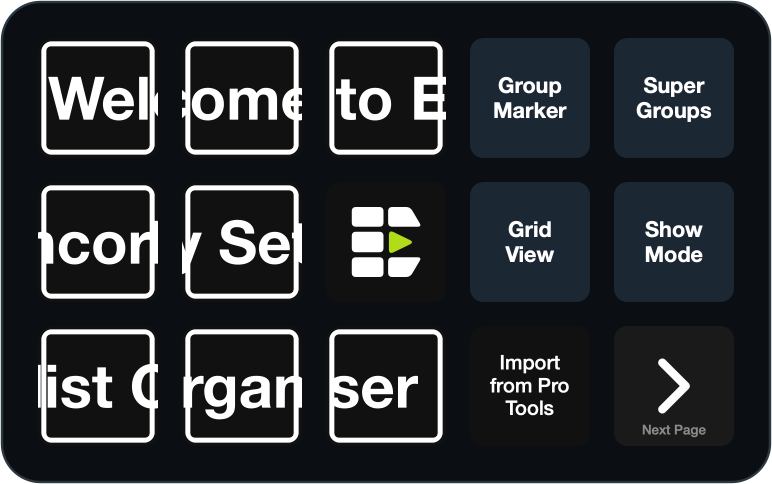
Encorly Layout 1, for 15-key decks
Eight pages, framed as the Encorly logo out of the box. Next Page and Previous Page, bottom right, move between them. What you see here is exactly what installs.
1. Home
The Encorly logo key in the middle of the logo with Message keys around it, and jump keys straight to Groups, Super Groups, Grid View, Show Mode and DAW Markers.
2. Groups
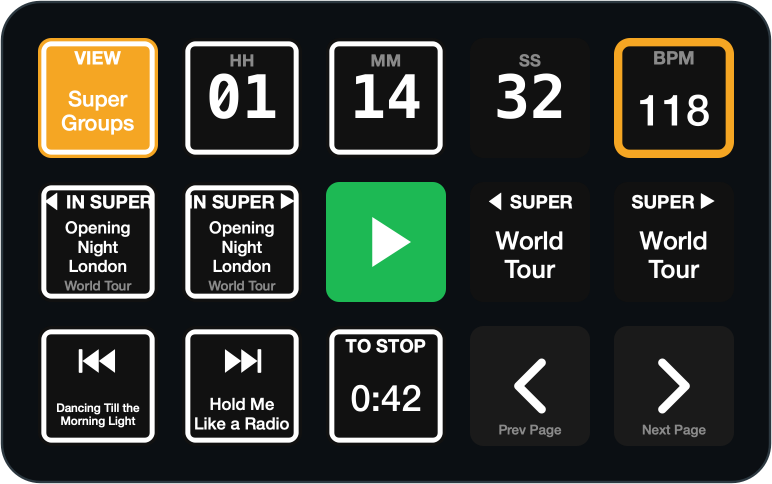
The timecode, tempo, Previous and Next Song, Play / Stop, Previous and Next Group, Add Header, New Group and To Stop.
3. Super Groups
The same, stepping through the groups in a super group and from one super group to the next.
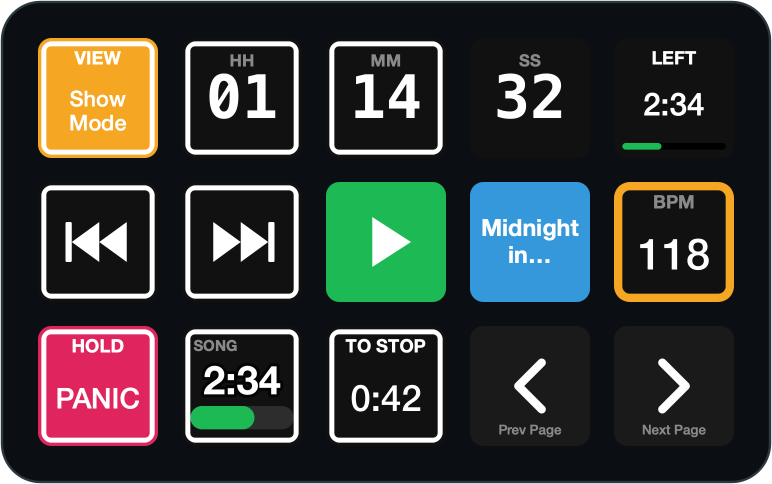
4. Show Mode
A big clock, Time Remaining, Previous and Next Song, Play / Stop, the song's name, the tempo, Panic Stop, a progress bar and To Stop.
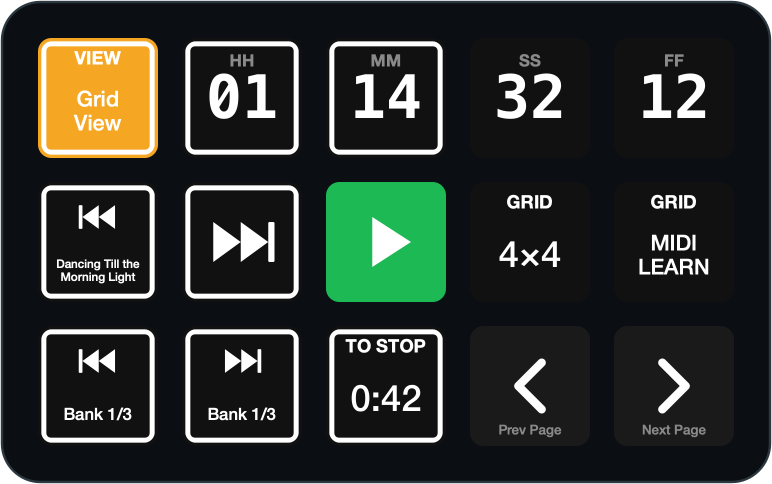
5. Grid View
The clock, Previous and Next Song, Play / Stop, Grid Layout, Grid MIDI Learn, the bank keys and To Stop.
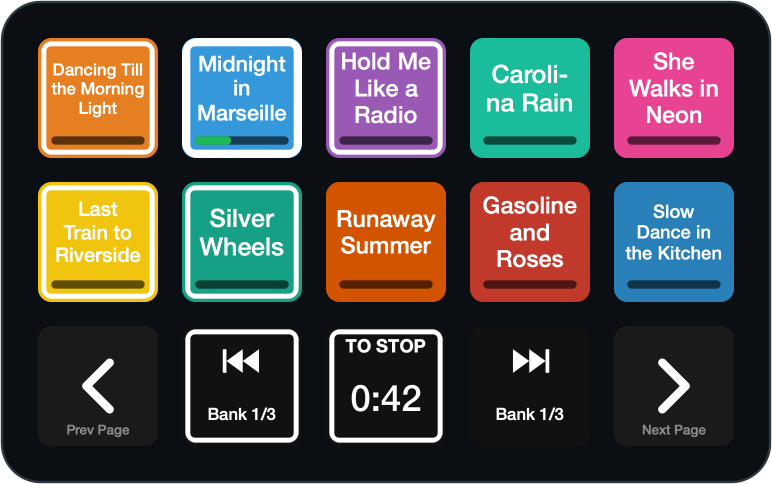
6. Grid pads
Ten pads from Grid View's current bank in their own colours. Press one to play its song.
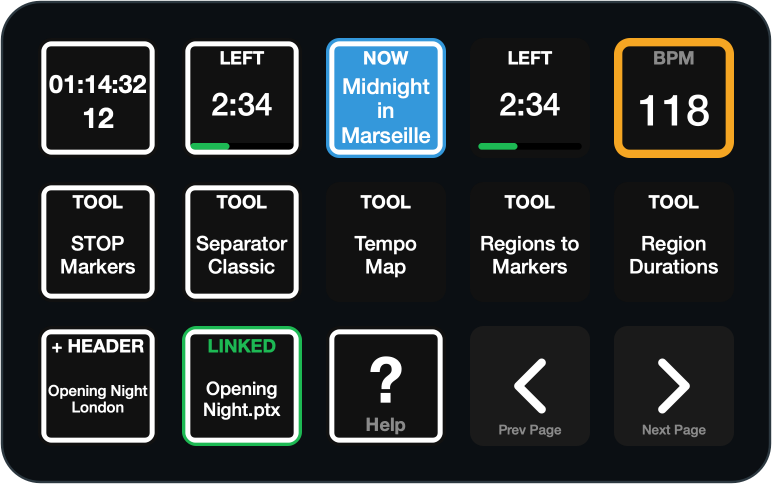
7. Tools
What's on at a glance, plus five tool keys that open Place STOP Markers, Region Separator Classic, Tempo Map, Regions to Markers and Region Durations.
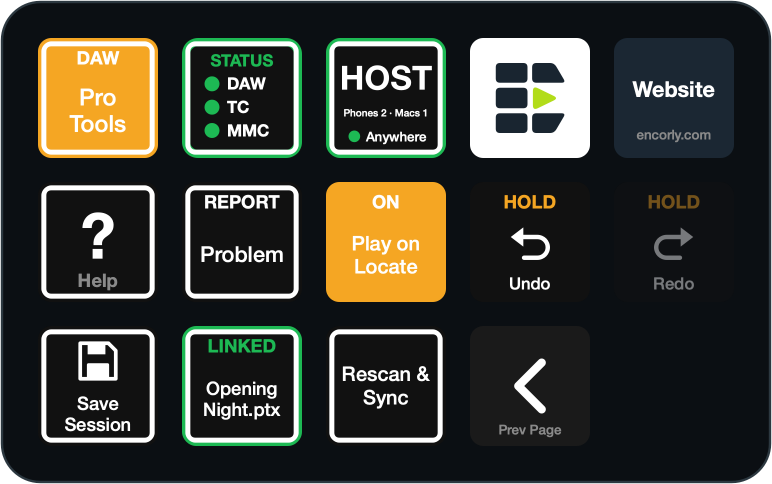
8. App
DAW, status lights, Network, Help, Report a Problem, Play on Locate, Undo, Redo, Save Session, Link Session and DAW Markers.
The deck follows the app
While the deck shows Layout 1, changing view in Setlist Organiser to Groups, Super Groups, Show Mode or Grid View takes the deck to the matching page. It only moves when the view changes, never pulls you back from a page you picked, and stays put while Deck Lock is on. Untick Deck follows the app to turn it off.
The Encorly logo frame
On a 15-key deck, a white border on the eight keys around the Play / Stop key makes the deck show the Encorly logo. Every key keeps its own colours and still works as normal. Tick or untick Encorly logo frame in any Encorly key's settings.
Layout 2, and the other decks
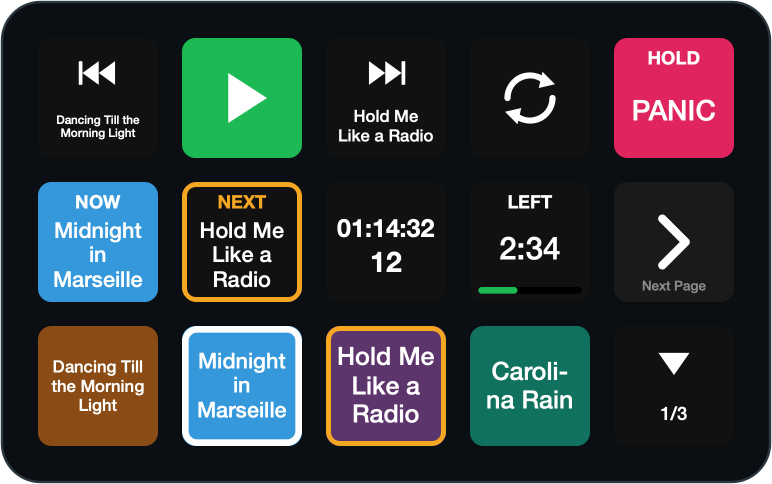
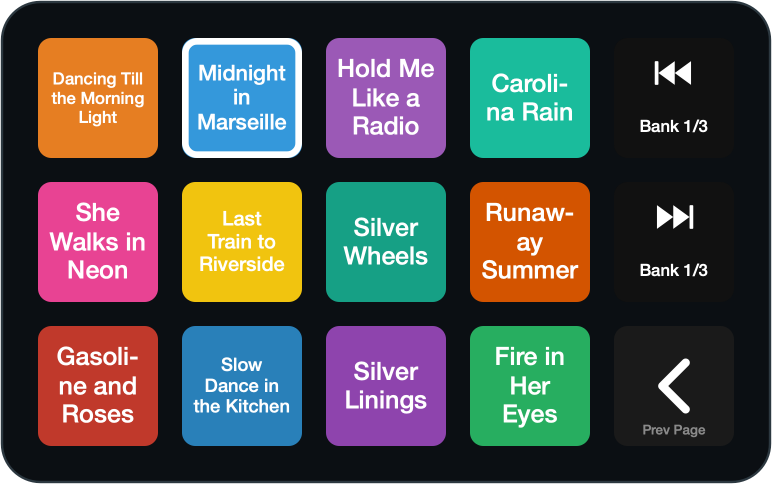
Layout 2 is a two-page alternative for 15-key decks: transport and setlist on one page, Grid pads on the other. The XL, Stream Deck +, Mini and Neo each get their own layout.
What you need.
| Setlist Organiser | Version 1.0 or later, open on the same Mac as the Stream Deck. The plug-in comes with the app, free |
|---|---|
| Stream Deck app | The Elgato Stream Deck app, version 7.3 or later (free from Elgato) |
| Mac | Setlist Organiser's own requirements: macOS 14 (Sonoma) or later, on Apple Silicon or Intel. See system requirements |
| Stream Deck models | Ready-made layouts for the 15-key Stream Deck (MK.2 and the original 15-key models), Stream Deck XL, Stream Deck +, Stream Deck Mini and Stream Deck Neo |
| DAW | Every DAW Setlist Organiser supports: Pro Tools, Reaper, Logic Pro and Bitwig Studio. Loop This Song is Bitwig only |
Installing it.
The plug-in comes inside Setlist Organiser, so it always matches the version of the app you have. Four steps, once.
Install the Stream Deck app
Free from Elgato, version 7.3 or later. Skip this if you already have it.
Choose Help ▸ Install Stream Deck Plug-in…
In Setlist Organiser. The Stream Deck app opens and installs the plug-in. If the Stream Deck app isn't on the Mac yet, Setlist Organiser says so and brings you to this page.
Accept the profile
The first time, Stream Deck offers a ready-made profile for the model you have connected. On a 15-key deck that is Encorly Layout 1.
Open Setlist Organiser
The keys come alive as soon as the app is open. Nothing needs mapping by hand.
Questions
Is it free?
Yes. The plug-in is free with Setlist Organiser. There is nothing extra to buy for it.
How do I update the plug-in?
Each Setlist Organiser update brings the plug-in that goes with it. After updating the app, choose Help ▸ Install Stream Deck Plug-in… again.
Which Stream Deck do I need?
There are ready-made layouts for the 15-key Stream Deck (MK.2 and the original 15-key models), the XL, the Stream Deck +, the Mini and the Neo. You need the Stream Deck app 7.3 or later.
Does it work without Setlist Organiser open?
The plug-in talks to Setlist Organiser running on the same Mac as the Stream Deck. While the app is closed, most keys say OFFLINE, and they come back by themselves within a few seconds of the app opening. Message keys and the Encorly logo key work with the app closed, and Help opens the online guide instead.
Can I change the layout?
Yes. The ready-made profiles are ordinary Stream Deck profiles: rearrange, remove or duplicate any key. Setlist Song keys fill themselves in, left to right, wherever you put them, and Encorly keys also work inside a Stream Deck Multi Action.
Can a stray hand stop the show?
Panic Stop needs a hold by default, and a quick tap only flashes a warning. Undo and Redo need a hold by default too, and the DAW and DAW Markers keys can be set to. Deck Lock locks every Encorly key with one tap; hold it for a second to unlock.
What does Report a Problem send?
Nothing, by itself. Holding the key opens Help ▸ Report a Problem in Setlist Organiser, which saves a diagnostics ZIP and shows it in Finder. The ZIP includes a short Stream Deck summary: the plug-in and Stream Deck versions, your deck model, which Encorly keys you use and the plug-in's last 20 errors. It has no names, licence keys, email addresses or file paths. You decide whether to email it to support.
Every key and setting is described in the Stream Deck section of the user guide.
Elgato and Stream Deck are trade marks of Corsair Memory, Inc. Encorly is an independent developer and is not affiliated with, endorsed by, or sponsored by Elgato or Corsair.
Free with Setlist Organiser.
Download the app, then choose Help ▸ Install Stream Deck Plug-in…